How to Use Your Phone Screen Comfortably While Preserving Battery Life?

Turning off location services and closing apps that drain the battery of an iPhone or Android phone can help extend battery life, but the screen brightness level may also be one of the main causes of its drain.
Screen brightness "usually accounts for between 30% and 50% of total battery consumption under normal usage conditions," according to SamMobile.
In simple terms, the brighter the screen, the more power the phone consumes to maintain that brightness level throughout the day.
However, this does not mean that you should set the brightness to a very low and uncomfortable level just to gain a few extra hours of battery life.
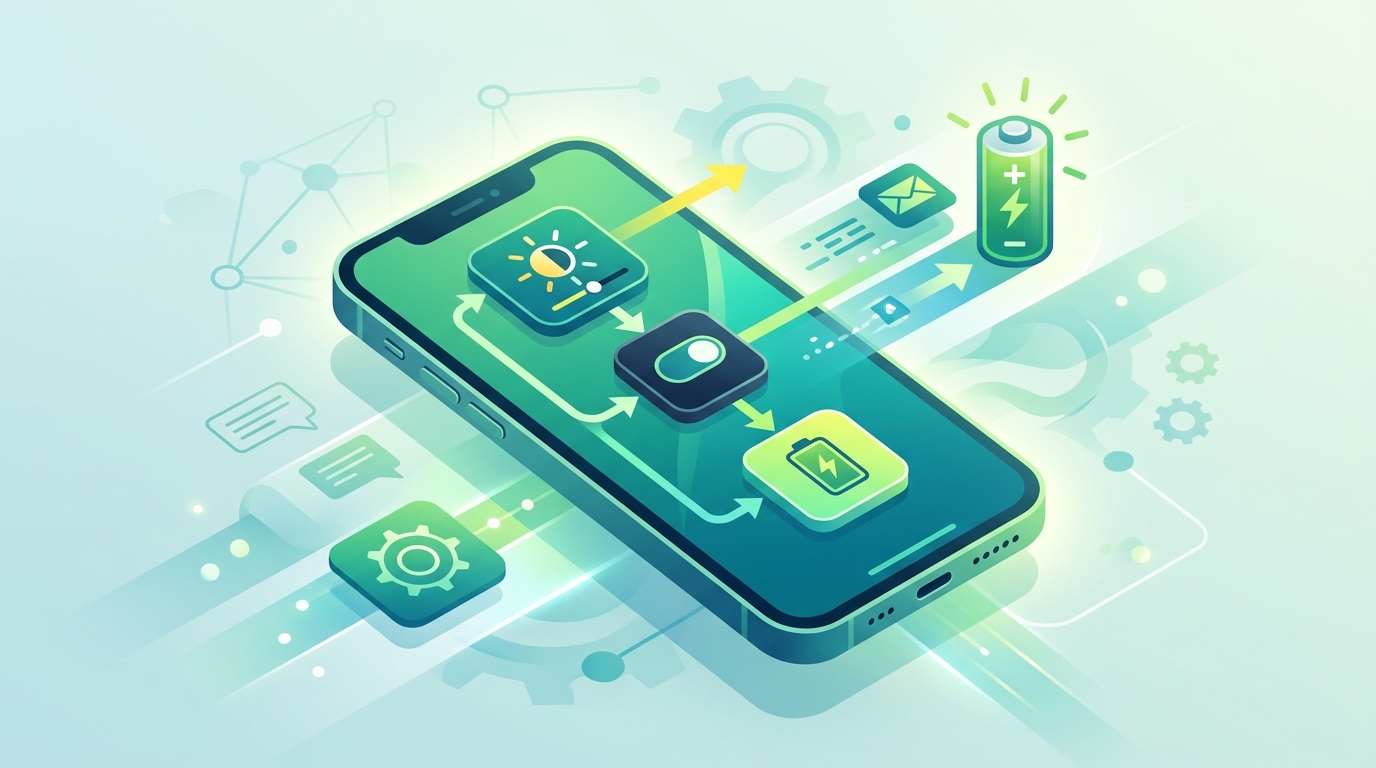
There are several settings that can also help extend battery life while maintaining screen clarity, such as enabling Adaptive Brightness or Auto Brightness, manually setting an appropriate brightness level, or using Dark Mode instead of the default light display mode, according to a report by tech news site BGR, seen by Al Arabiya Business.
In the past, devices were equipped with LCD screens, which emitted light even when the screen appeared dark. Today, however, the majority of smartphones rely on OLED screens, which reduce battery consumption when using dim or dark display settings, thereby contributing to longer battery life.
With this energy-saving feature, it is enough to find a comfortable brightness level that balances extending battery life and protecting the eyes from strain.
Adjusting screen brightness to improve battery life
One of the best ways to improve phone battery life is to enable Adaptive Brightness or Auto Brightness, which can be easily accessed through the Settings app on iOS and Android devices.
Some people may think that this feature consumes a lot of energy, but in reality, the sensors consume only a very small amount, as their role is limited to detecting the ambient light level.
Manually adjusting brightness using the slider in the system's Control Center can be equally effective, provided the brightness level is kept between 50% and 75% to help preserve battery life, while remembering to readjust it when moving between brightly lit or dimly lit places.
Another setting worth checking is Dark Mode, which can also be enabled on iOS and Android phones through the Display & Brightness section.
If you use the default light mode, which displays dark text on a white or light background, enabling Dark Mode will switch the interface to light text on a dark background, both on the home screen and in most installed apps.
One of the main drawbacks of Dark Mode is that its interface may make content harder to see when using the phone under bright sunlight.
However, it is an excellent option for saving battery, especially on phones with OLED screens, as any black pixel on the screen emits no light and consumes no power. If you are not a fan of Dark Mode, you can always switch back to Light Mode.
Advertising material
Advertising material
Original source: Al Arabiya


Comments (0)
Be the first to comment.